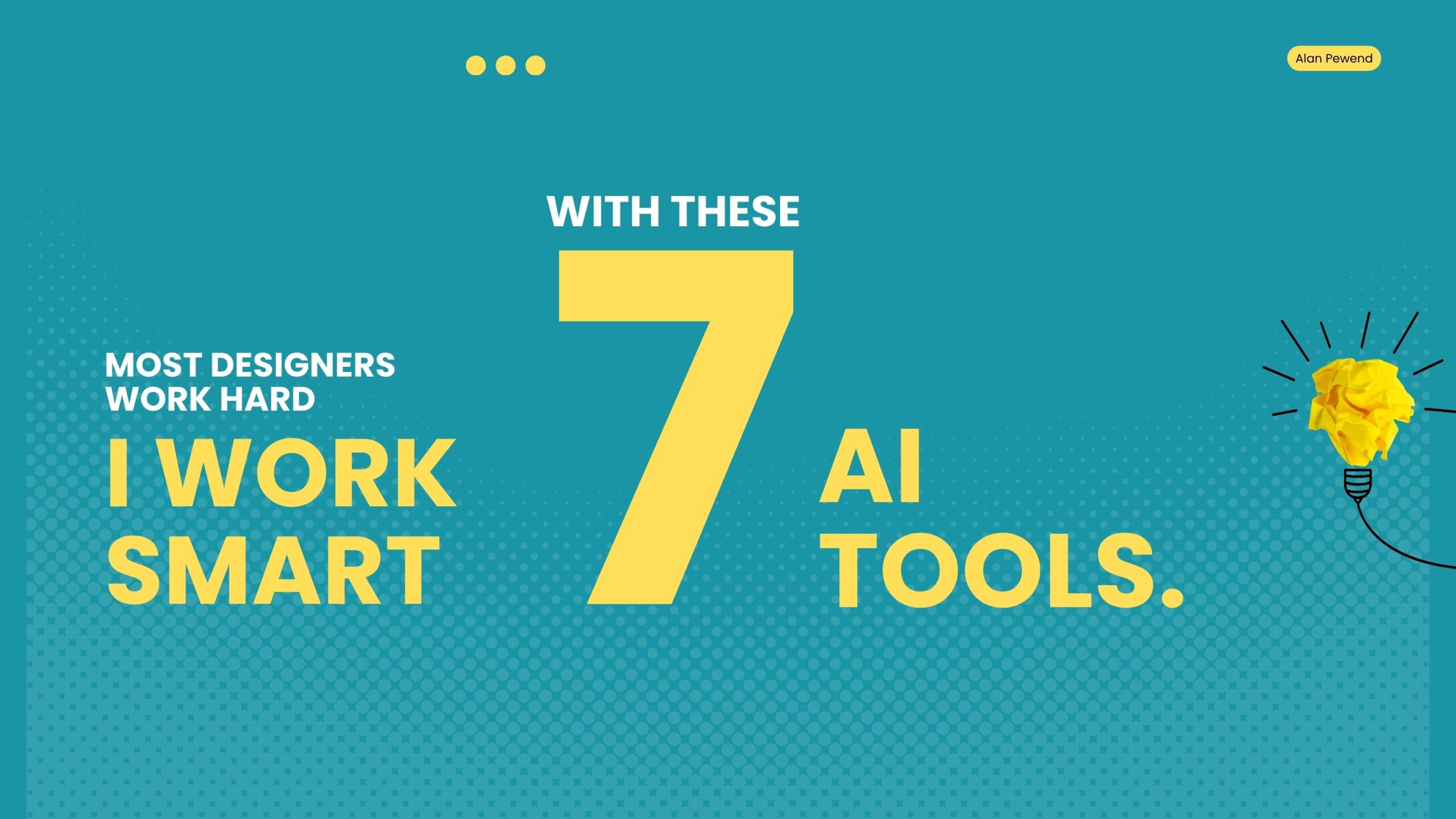
Most designers work hard. I work smart.
That’s not me being arrogant — that’s me being honest about what happened when I started building my AI toolkit. Tasks that used to eat up half my day now take minutes. Creative blocks that used to stop me in my tracks barely exist anymore. And the quality of my work? Better than ever.
If you’re a graphic designer still on the fence about AI tools, this post is for you. Here are the 7 tools I use every single day — what they do, why I love them, and how they fit into my workflow.
Freepik — No More Blank Canvas
Let’s start with the one that changed how I begin every project.
Freepik has always been a go-to for designers needing stock images, vectors, and mockups. But since they introduced AI-powered generation, it’s become something else entirely — a creative starting point that never runs dry.
Instead of staring at a blank artboard wondering where to begin, I now open Freepik, describe what I need, and get a visual reference or asset in seconds. Whether it’s a background texture, a product mockup, or an illustration style to match a client’s brand, Freepik gets me unstuck fast.
Why it works for me: It bridges the gap between “I have an idea” and “I have something on screen.” That momentum is everything in a creative workflow.
2. Canva — Speed Without Sacrificing Quality
I know what some of you are thinking. “Canva is for non-designers.” And sure, it started that way. But the AI features Canva has added over the past couple of years have made it genuinely powerful — even for professionals.
Magic Design generates layout options from a single prompt. The AI background remover is cleaner and faster than doing it manually in Photoshop for quick jobs. Magic Write helps me draft text content directly inside the design. And the Brand Kit keeps everything consistent across client deliverables without me having to think about it.
For social media content, presentations, and fast-turnaround client work, Canva is unbeatable. It’s not replacing my Illustrator or Photoshop skills — it’s handling the repetitive, time-sensitive stuff so I can focus my energy where it actually matters.
Why it works for me: When a client needs something “by end of day,” Canva makes that possible without the panic.
3. CapCut — Motion Content Without the Learning Curve
Video is no longer optional for designers. Clients want reels, stories, animations, and short-form content — and they want them fast. CapCut solved that problem for me.
The auto-caption feature alone saves me hours every month. AI B-roll suggestions mean I’m not scrambling for footage. Smart cuts analyse the audio and video to suggest edit points that actually make sense. And the interface is clean enough that I’m not losing time to a steep learning curve.
I’m not a video editor by trade. But CapCut makes me look like one — and that’s expanded the kind of work I can offer clients significantly.
Why it works for me: It turns motion content from a weakness into a genuine offering, without requiring me to become a full-time video editor.
4. Google NotebookLM — My AI Research Brain
This one might surprise you, but Google NotebookLM has become one of the most valuable tools in my entire stack.
Before I start any project, there’s a research phase — understanding the client’s industry, their competitors, their audience, their tone of voice. That used to mean hours of reading, taking notes, and trying to connect ideas. Now I dump all of that material — briefs, articles, websites, reference documents — into NotebookLM, and it synthesises it for me.
It surfaces connections I might have missed. It answers my questions about the material. It helps me understand a new industry quickly so I can design with confidence and context, not just aesthetics.
Why it works for me: Good design is informed design. NotebookLM makes sure I understand the brief deeply before I touch a single tool.
5. Gemini — Google’s Ecosystem, Supercharged
If you’re already living inside Google’s ecosystem — Docs, Slides, Drive, Gmail — Gemini fits in seamlessly.
I use Gemini for drafting copy directly inside Google Docs, for summarising research, for refining presentation content in Slides, and for quick contextual searches that go beyond what a standard Google search gives me. The ability to stay inside the tools I’m already using, without switching to a separate AI tab, keeps my focus intact.
It’s also genuinely useful for visual concept generation when I’m planning a direction and need to articulate it clearly to a client or collaborator.
Why it works for me: It removes friction. The best AI tool is the one you’ll actually use — and Gemini is right where I already am.
6. ChatGPT — My Writing Partner
Design is visual, but a huge part of my job involves words. Taglines. Brand stories. Client proposals. Social media captions. Alt text. Creative briefs. The list goes on.
ChatGPT handles all of that. I use it to brainstorm creative directions when I’m stuck, to write copy that complements the design, to draft client-facing emails in a professional tone, and to generate multiple headline options so I can pick the one that feels right.
It doesn’t replace my creative judgement — it feeds it. Having a tool that can rapidly generate ten different ways to say something means I spend less time wrestling with words and more time doing what I’m actually good at.
Why it works for me: It keeps me in design mode. The writing gets done; the designing gets done better.
7. Claude — Deep Thinking for Complex Problems
Claude is the tool I reach for when things get complicated.
Not every brief is straightforward. Some projects require real strategic thinking — understanding a brand’s positioning, working through a complex content structure, refining a concept that isn’t quite landing, or writing a detailed creative brief that will guide a whole team. That’s where Claude excels.
It thinks carefully, asks good questions, and gives thorough answers. When I need to articulate a creative strategy to a client, work through a brand identity framework, or make sense of a complicated design challenge, Claude is the tool I trust most.
Why it works for me: Some problems need more than a quick answer. Claude gives me the depth I need to do my best work.
The Bigger Picture
I want to be clear about something: none of these tools replaced my skills. My eye for design, my understanding of visual communication, my relationships with clients — AI can’t touch any of that.
What AI did was clear the path. It took the time-consuming, energy-draining, repetitive parts of my workflow and handled them so I could pour more of myself into the parts that actually matter.
The designers who are thriving right now aren’t the ones who avoided AI. They’re the ones who built a smart, intentional toolkit around it — and kept their creative instincts at the centre.
If you’re just getting started with AI tools, pick one from this list and spend a week getting comfortable with it. You don’t need all seven at once. Start with the one that solves your biggest pain point.
And if you’ve already got a stack you love, I’d genuinely love to hear about it — drop it in the comments below.
Found this helpful? Share it with a fellow designer who’s still on the fence about AI.